Theralpine
Theralpine app icon

Theralpine App

The app, step by step

Set up your chiller, plan your next plunge and get to know every part of the app. Follow the screens at your own pace.

Go to the guide
Theralpine app icon

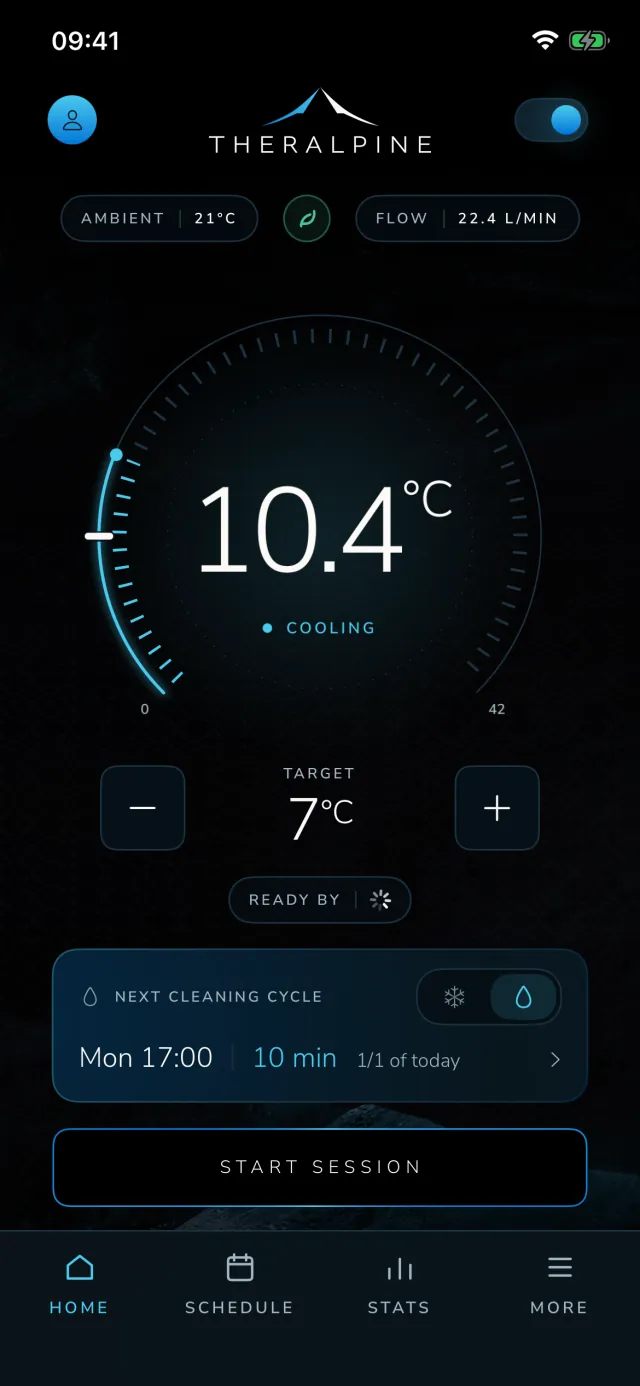
The Theralpine app for iPhone and Android

Available now on the App Store and Google Play.

Download on the App StoreGet it on Google Play

Your app guide

Find what you need.

Choose your chiller, then pick a part of the app. Each chapter walks you through the real screens, one step at a time.

Chapter 1 of 5

Setup

Set up your Chiller Pro. Keep your phone near the chiller while it connects.

What you need

  1. 1An iPhone or Android phone with the Theralpine app and Bluetooth turned on. Allow nearby-device access when Android asks, or Bluetooth access when iOS asks. If Android asks for location access to read your current Wi-Fi, allow it for that step or enter the network manually.
  2. 2Your Chiller Pro, switched on, filled with water and within Wi-Fi range.
  3. 3A network supported by your chiller (see the app’s Wi-Fi screen), its password and access to your email.

Already have a Theralpine account? Sign in with that account.

1.1Setup step by step

Step 1 of 13

Open “Create account”

When the app opens, you see “Welcome back.” Tap “Create one” at the bottom.

Good to know

Already have an account? Log in here. See “Log in and password” for help.

1 of 13

1.2If something goes wrong

Step 1 of 4

Log in does not work

Check your email address and password. You can also sign in with a code or reset your password. If you signed in successfully and the app says it is taking too long to connect to your chiller, tap Continue to retry. You can keep using the same Theralpine account.

1 of 4

1.3Log in and password

For everyone who already has an account: log in with a password or with a code by email, replace a forgotten password and choose the account country.

Step 1 of 5

Logging in with an email code

Don't know your password right now, or don't want to type it? Log in with a code instead. “Welcome back.” now reads: “We will email you a code to log in to your existing account.”

  1. Enter your email address and check your account country.
  2. Tap “Send login code”.

We send you a code. This way only works with an existing account: it never creates a new one, not even from a typo. “Log in with password” takes you back to the normal login.

1 of 5

Support

Stuck somewhere?

Write to us. We answer ourselves, usually within one business day.